In this post How to Make a WordPress theme options page or an admin menu page for WordPress theme, I am going to show how to make a setting page for WordPress custom theme.
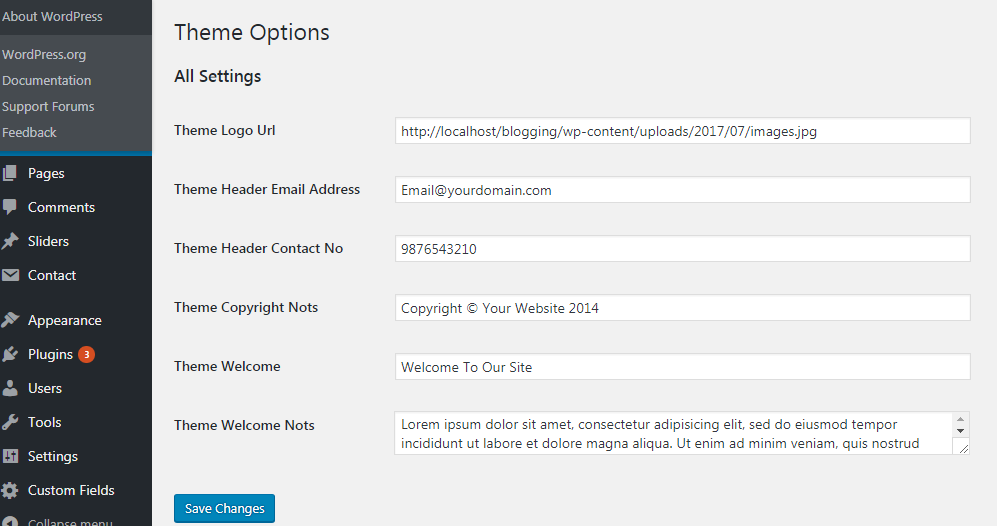
theme option
Open your theme function.php file and write the code
Now start the code step by step
Step 1. Create a menu and page in the WordPress admin panel.
For that use the below code
//call the function for admin menu
add_action("admin_menu", "add_theme_menu_item");
//called function by admin menu
function add_theme_menu_item()
{
$page_title       = 'Theme Option Page';
$menu_title       = 'Theme Option';
$capability       = 'manage_options';
$menu_slug        = 'theme-option';
$function_to_call = 'theme_settings_page';
$icon_url         = null;
$position         = 12;
add_menu_page($page_title, $menu_title, $capability, $menu_slug, $function_to_call, $icon_url, $position);
}
I have kept the sdd_menu_page() functions parameters in a variable according to the uses of the parameters.
$page_title: is used to display the value as the title of the page and show it in a tab of the browser.
$menu_title: is used to make the title of the left menu of the WordPress admin panel
$capability = ‘manage_options’: both are used as a keyword to make of providing the capability of the menu
$menu_slug: it is used for the URL link or slug of the page
$function_to_call: it will call the function given regarding the variable and will show in the HTML content of the function and display inside theme options page or created page
$icon_url: if want to give some icon for the admin panel menu as an indicator then provide an URL of an icon here
$position: is used to set the menu position.
Step 2: Now declare the function and basic HTML and code, called by the declaration of the theme option menu
//The function to call from the time of adding admin menu
function theme_settings_page(){
?>
<div class="wrap">
<h1>Theme Options</h1>
<form method="post" action="options.php">
<?php
//giving the id of the field area
settings_fields("section");
do_settings_sections("theme-options");
submit_button();
?>
</form>
</div>
<?php
}
Now inside the form tag, I have used 3 function
- settings_fields(“section”); is used for setting the fields and the “section” parameter will be used to declare the fields
- do_settings_sections(“theme-options”); in this case the theme option will be used for declaring the fields
- submit_button(); the function I used to create and place a submit button
Step 3. Initialize the display of the field, for that use the below function
//call the function for admin init
add_action("admin_init", "display_theme_panel_fields");
//called function by admin init
function display_theme_panel_fields()
{
add_settings_section("section", "All Settings", null, "theme-options");

//adding the secrtion of logo url
add_settings_field("theme_logo_url", "Theme Logo Url", "display_theme_logo_element", "theme-options", "section");
//registering the secrtion of logo url
register_setting("section", "theme_logo_url");

//adding the secrtion of Header Email Address
add_settings_field("theme_header_email", "Theme Header Email Address", "display_theme_header_email", "theme-options", "section");
//registering the secrtion of Header Email Address
register_setting("section", "theme_header_email");
}
I am going to show the function by two fields one for logo url and another for email address
- the add_settings_section(“section”, “All Settings”, null, “theme-options”); is used for delacring a heading of the fields
- add_settings_field(“theme_logo_url”, “Theme Logo Url”, “display_theme_logo_element”, “theme-options”, “section”); its used for declaring a field where theme_logo_url is the field name and used for regidter that particular field, Theme Logo Url is the label of the field , display_theme_logo_element is the function to call for display the field and the theme-options and section is used to settings_fields(“section”); and do_settings_sections(“theme-options”); portion
- now register the field for submission by using the code register_setting(“section”, “theme_logo_url”);
- similarly the email field
Now Step 4 . to make the html of the logo field and the email field
Foe that create a function name which is defined in add_setting_field the “display_theme_logo_element” and make a logo field similarly declare a function by name “display_theme_header_email” which is already defined in add_settings_field for email.
Now the code for that or the two functions are is
//display the section for logo url
function display_theme_logo_element()
{
?><input type="text" name="theme_logo_url" id="theme_logo_url" value="<?php echo get_option('theme_logo_url'); ?>" style="width:100%;"/><?php
}

//display the section for Header Email Address
function display_theme_header_email()
{
?><input type="text" name="theme_header_email" id="theme_header_email" value="<?php echo get_option('theme_header_email'); ?>" style="width:100%;"/><?php
}
You can fetch the value of the field inserted by using get_option(); function and passing the parameter as the name of the field
Example =”<?php echo get_option(‘theme_logo_url’); ?>
Now the full code to define in function.php is:
//call the function for admin menu
add_action("admin_menu", "add_theme_menu_item");
//called function by admin menu
function add_theme_menu_item()
{
$page_title       = 'Theme Option Page';
$menu_title       = 'Theme Option';
$capability       = 'manage_options';
$menu_slug        = 'theme-panel';
$function_to_call = 'theme_settings_page';
$icon_url         = null;
$position         = 12;
add_menu_page($page_title, $menu_title, $capability, $menu_slug, $function_to_call, $icon_url, $position);
}

//The function to call from the time of adding admin menu
function theme_settings_page(){
?>
<div class="wrap">
<h1>Theme Options</h1>
<form method="post" action="options.php">
<?php
//giving the id of the field area
settings_fields("section");
do_settings_sections("theme-options");
submit_button();
?>
</form>
</div>
<?php
}

//call the function for admin init
add_action("admin_init", "display_theme_panel_fields");
//called function by admin init
function display_theme_panel_fields()
{
add_settings_section("section", "All Settings", null, "theme-options");

//adding the secrtion of logo url
add_settings_field("theme_logo_url", "Theme Logo Url", "display_theme_logo_element", "theme-options", "section");
//registering the secrtion of logo url
register_setting("section", "theme_logo_url");

//adding the secrtion of Header Email Address
add_settings_field("theme_header_email", "Theme Header Email Address", "display_theme_header_email", "theme-options", "section");
//registering the secrtion of Header Email Address
register_setting("section", "theme_header_email");
}
//display the section for logo url
function display_theme_logo_element()
{
?><input type="text" name="theme_logo_url" id="theme_logo_url" value="<?php echo get_option('theme_logo_url'); ?>" style="width:100%;"/><?php
}
//display the section for Header Email Address
function display_theme_header_email()
{
?><input type="text" name="theme_header_email" id="theme_header_email" value="<?php echo get_option('theme_header_email'); ?>" style="width:100%;"/><?php
}
In this post, we have learned about the How to Make a theme options page or an admin menu page for WordPress theme next we will learn about how to make a theme identification image or featured image of the theme,
Please give your comments to make the site more usable and userfriendly.
Thanks for Reading